SpiderCat
I would like to understand things better, but I don’t want to understand them perfectly.
- Douglas Hofstadter
SpiderCat is a jailbreak released on 01/09/26 by sparklerfish.
Prerequisites
- A Kindle
- A supported model and firmware, as you have been led here by the Jailbreaking Wizard.
- You have read this overview and filled the device, if applicable
- A Wi-Fi connection.
If you face any difficulty in following these guides, please navigate to the troubleshooting section, and/or make a ticket in the KindleModding Discord support forums/Community Reddit.
Installation Guide
Before Jailbreaking...
Jailbreaking often involves connecting to the Internet. Before beginning any jailbreaking process, please remember to fill up your Kindle as to avoid ruining the jailbreak mid-process. Additionally, please ensure you have read this before you start.
If you have done the above, please commence to the next step.
Download the SpiderCat book
You may choose to either download and sideload SpiderCat via USB from your computer, or download it directly from your Kindle's web browser.
If USB sideloading via computer, go to Step 3.
If downloading via Kindle browser, go to Step 4.
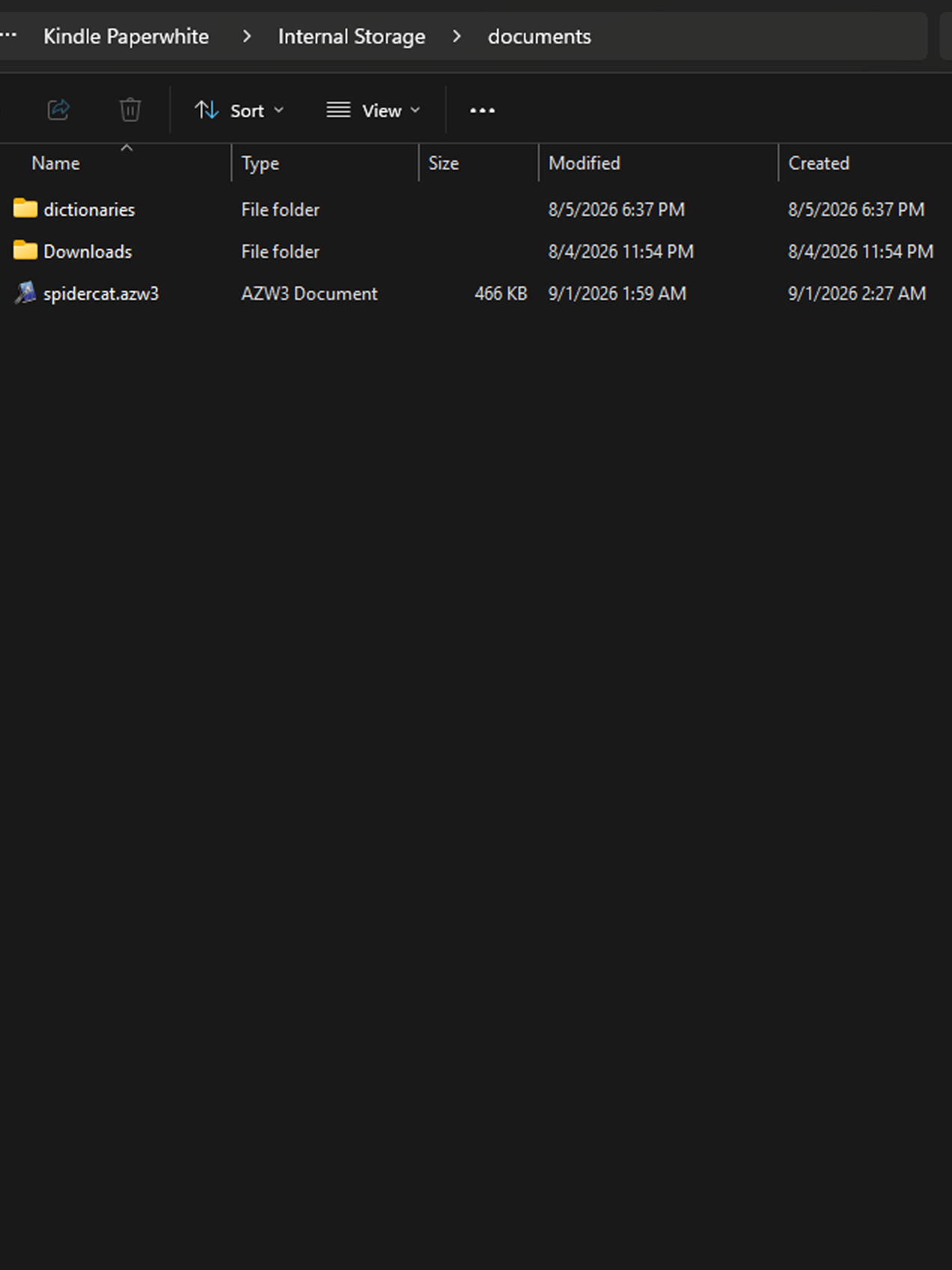
Sideloading SpiderCat via computer
If downloading via Kindle browser, skip to Step 4.
Download SpiderCat from the following link and place in the Kindle's "documents" folder:
Download SpiderCat
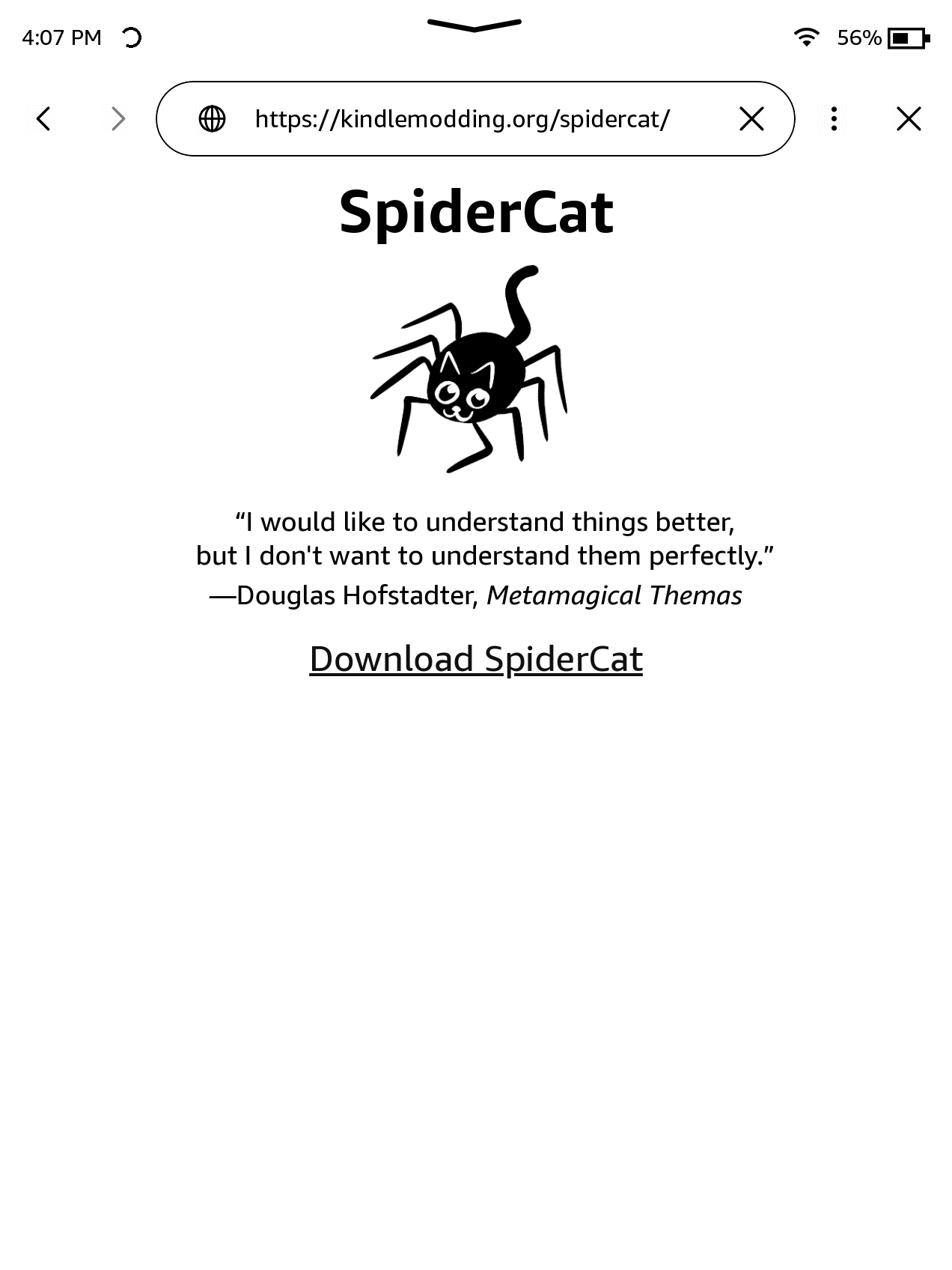
Downloading SpiderCat via Kindle browser
If you sideloaded via USB, skip to Step 5.
On your Kindle, open the Web Browser and navigate to the following URL and download SpiderCat:https://kindlemodding.org/spidercat
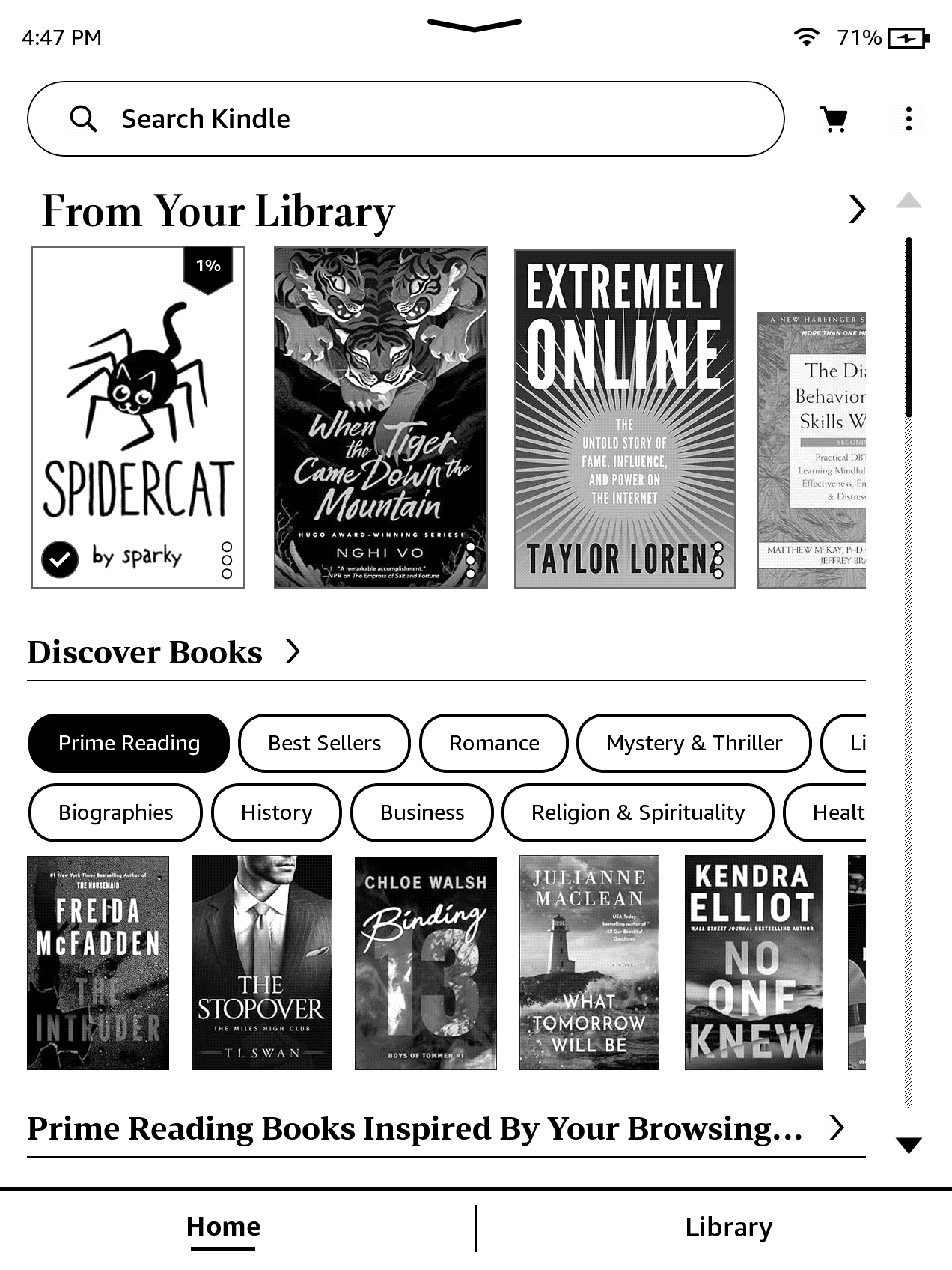
Open the Book from your Library
The SpiderCat book should now appear in your library. You may or may not see cover art, depending on your device and firmware.
Do not disable Wi-Fi at this point. It is required until the final step of the jailbreak is completed.
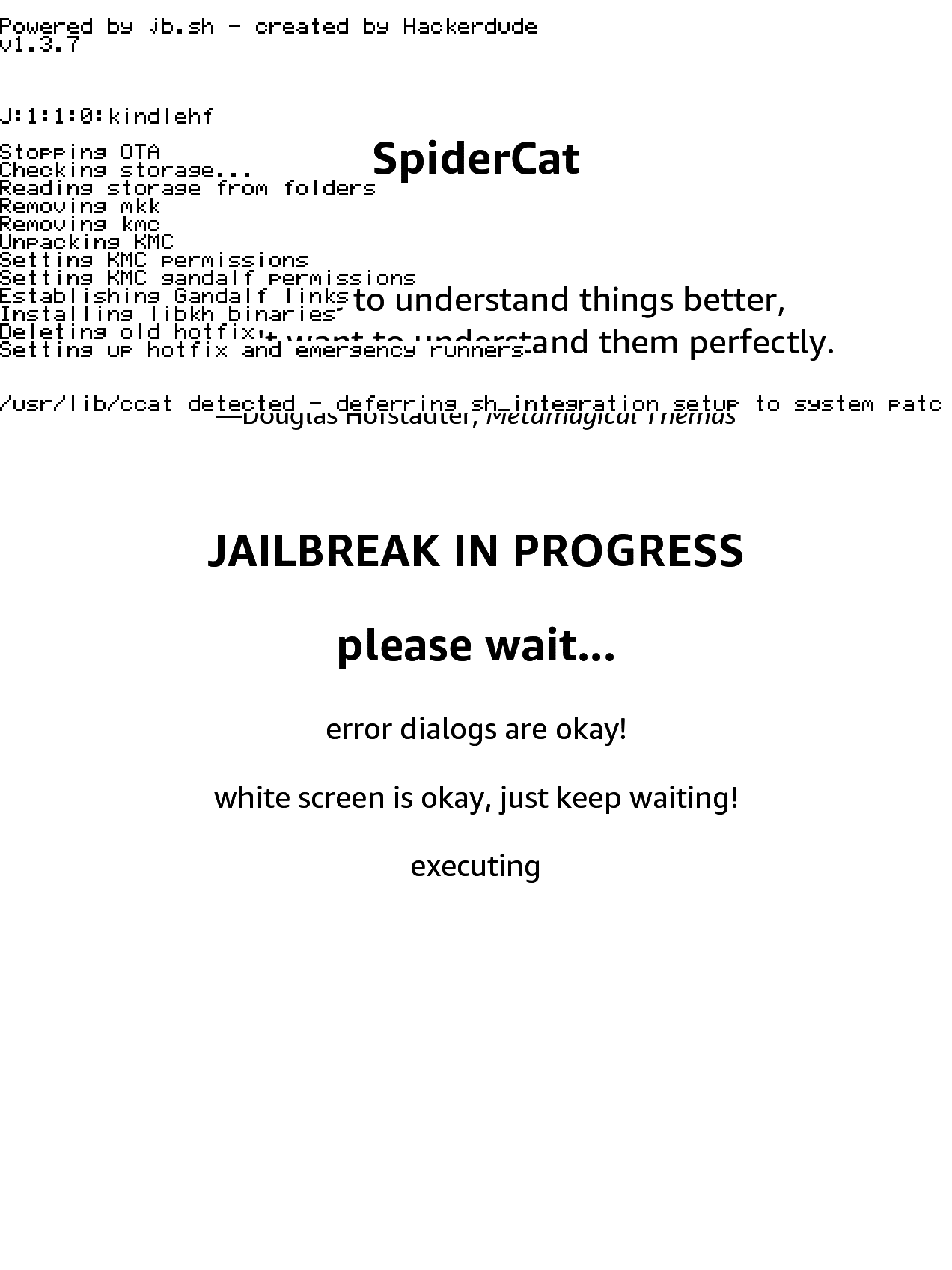
Jailbreak!
Wait for the book to load. You may only see a blank page for several seconds.
Continue waiting after the page appears. After several more seconds, text will begin to flow down from the top of the screen.
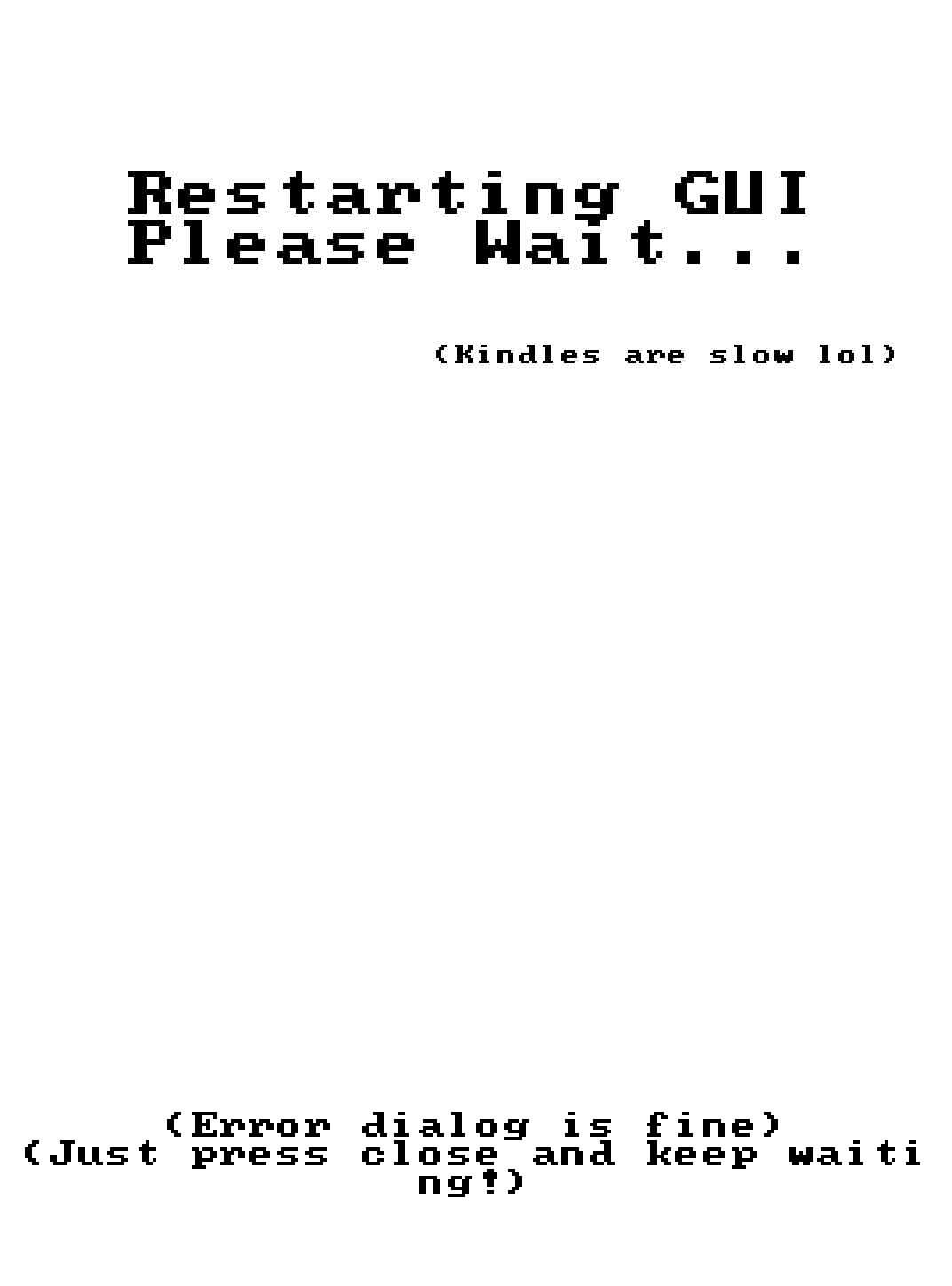
You can safely ignore any "application error" popups, they are irrelevant.
Restart and Done!
When the jailbreak script completes, "Restarting Kindle" will appear and the Kindle will reboot. Then, your device will be in a jailbroken state.
After Jailbreaking...
Commence to the What's Next section to read about installing scriptlets, homebrew, and KOReader.
Read the whole section thoroughly.
Before you do this, also remove any existing update files with a
.bin extension, if they exist in the Kindle's root.Have fun! :)
Troubleshooting
Common Issues
- Nothing happens after first opening the book
- Ensure that you have a wifi connection when opening the book. If it still doesn’t work, join the discord server for support.
- The last line of text on the book reads “abort:no-firm” instead of “executing”
- Double check your model and firmware version and verify that it is compatible with this jailbreak. If the wizard reports compatibility yet this message appears, join the discord server for support.