Sanctuary
I know not all that may be coming, but be it what it will, I’ll go to it laughing.
- Herman Melville
Sanctuary is a jailbreak released on 30/06/2026 by Ava, Alysa (Sky), sparklerfish.
Prerequisites
- A PC, Kindle.
- A supported model and firmware, as you have been led here by the Jailbreaking Wizard.
- You have read this overview and filled the device, if applicable
- A Wi-Fi connection.
If you face any difficulty in following these guides, please navigate to the troubleshooting section, and/or make a ticket in the KindleModding Discord support forums.
Installation Guide
Before Jailbreaking...
Jailbreaking often involves connecting to the Internet. Before beginning any jailbreaking process, please remember to fill up your Kindle as to avoid ruining the jailbreak mid-process. Additionally, please ensure you have read this before you start.
If you have done the above, please commence to the next step.
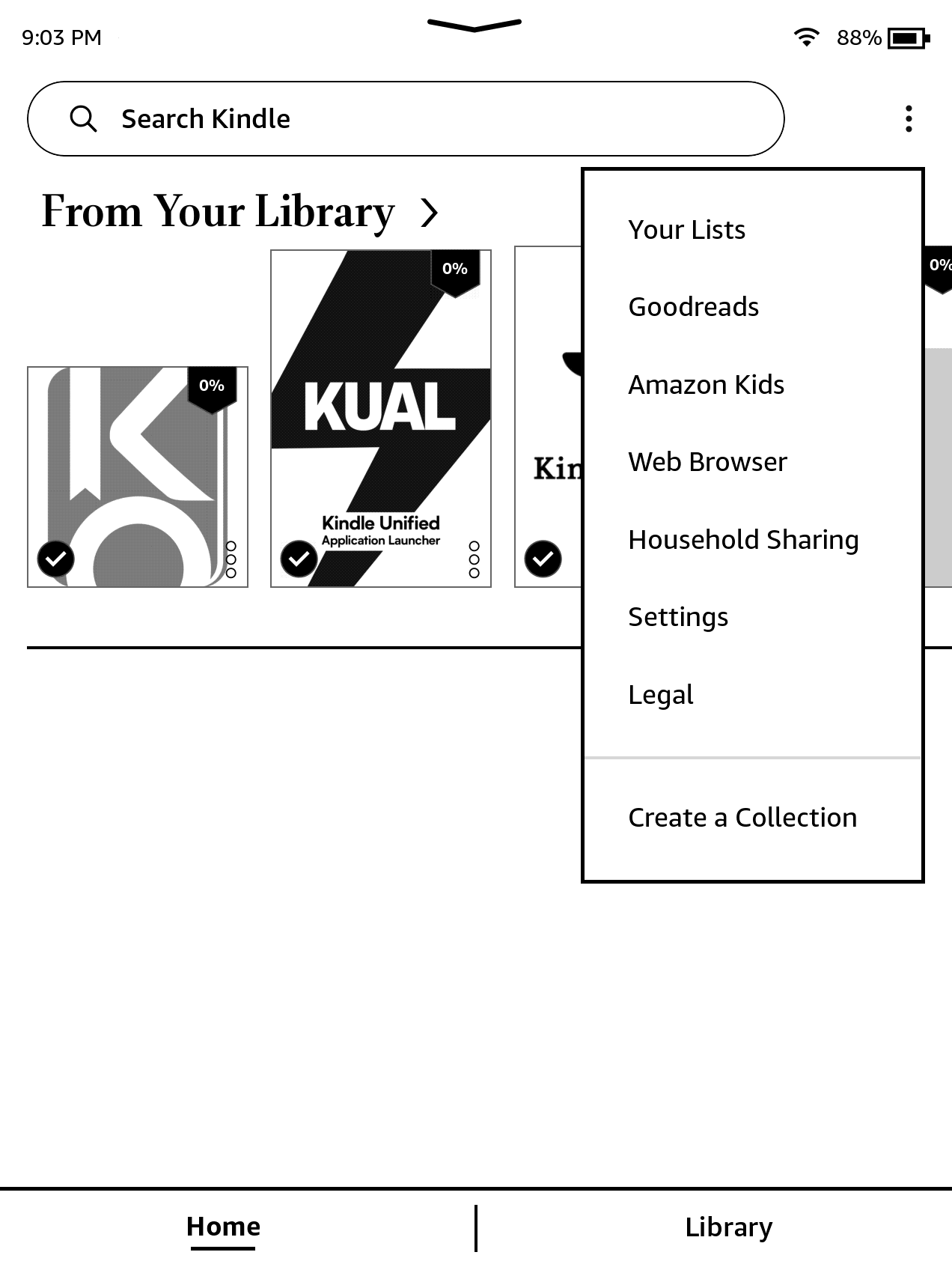
Navigate to your kindle's browser.
On your Kindle, open the Web Browser (3 Dots → Web Browser)
Then, navigate to the following URL:
http://sanctuary.skyvincent.com/scroll
Ensure that the URL starts with http, not https
Check browser compatibility
Wait for the website to load until a scroll bar appears on the right.
Compare your scroll bar to the images below.
If your scroll bar appears to be the one on the left, you can proceed to the next step.
If your scroll bar is the one on the right, you will have to manually update your firmware to the latest jailbreakable version.

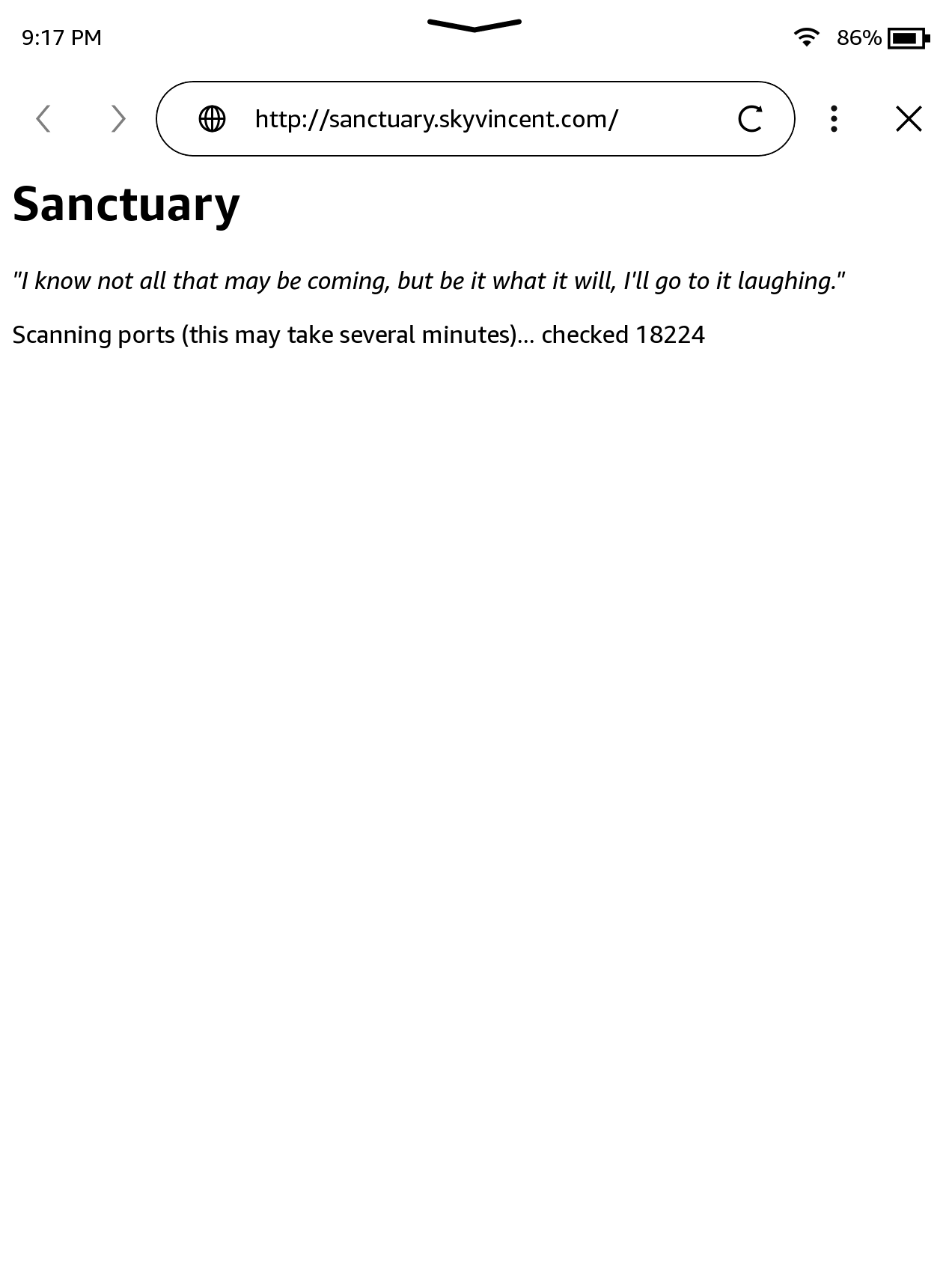
Navigate to the primary page, and scan ports
In your browser, navigate to:
http://sanctuary.skyvincent.com/
Once the page has loaded, port scanning will start. This can take up to 20 minutes, but requires no interaction.
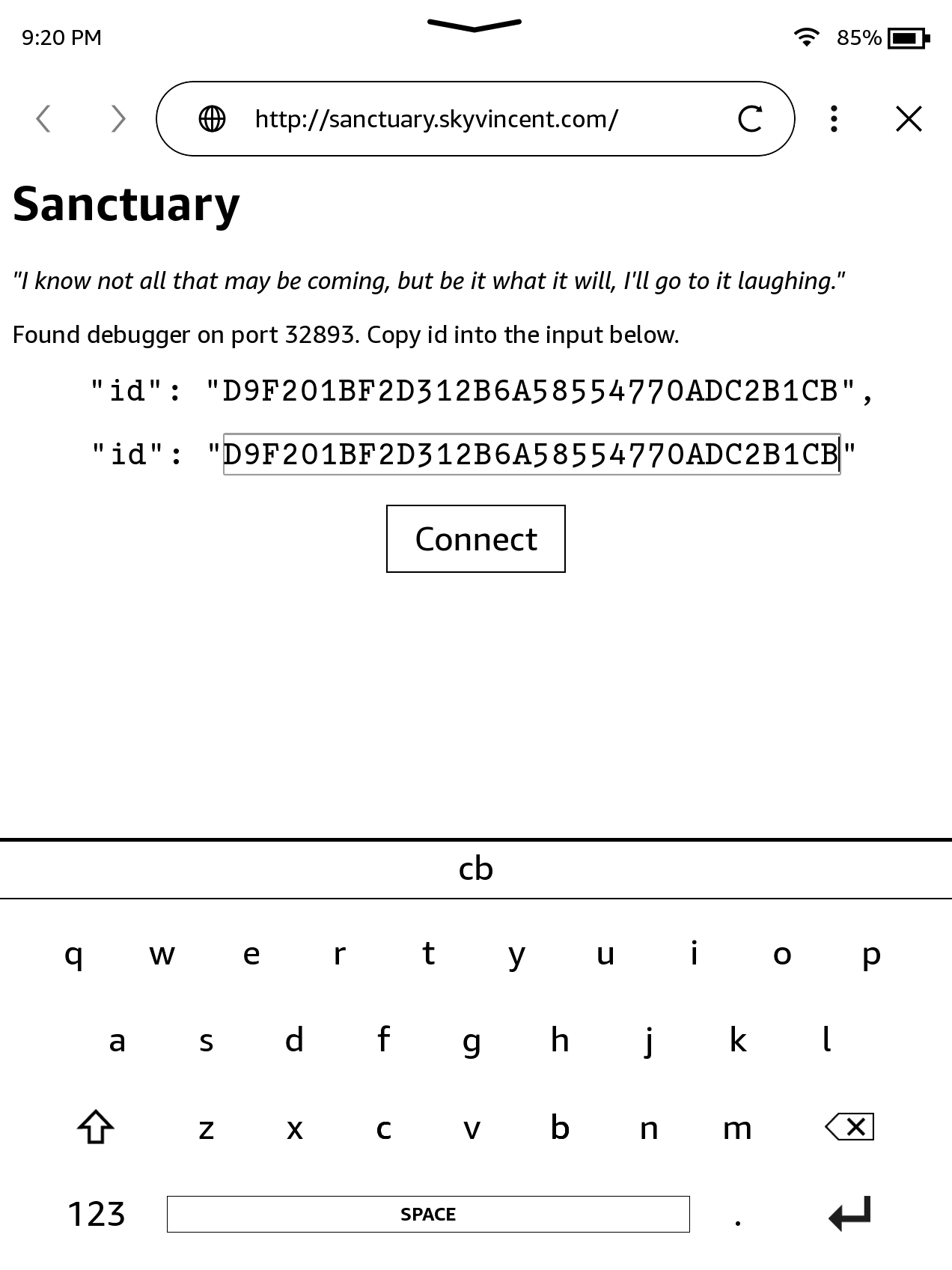
Once an ID has appeared, proceed to the next step.
If an ID never appears, please join the Discord server for support.
Enter in the ID
The ID will be displayed in a text box, and you must type the exact ID into the box below it.
The website automatically capitalizes the letters for you, so there is no need to manually capitalize while typing.
Any "0"s that may appear in the ID are zeroes. The only characters the ID can contain are 0123456789ABCDEF.
Click the "Connect" button
Upon ensuring that the typed id exactly matches the upper ID, you may hit the "Connect" button.
If nothing happens, or an error appears, then the ID was entered in wrong. Try re-typing the ID.
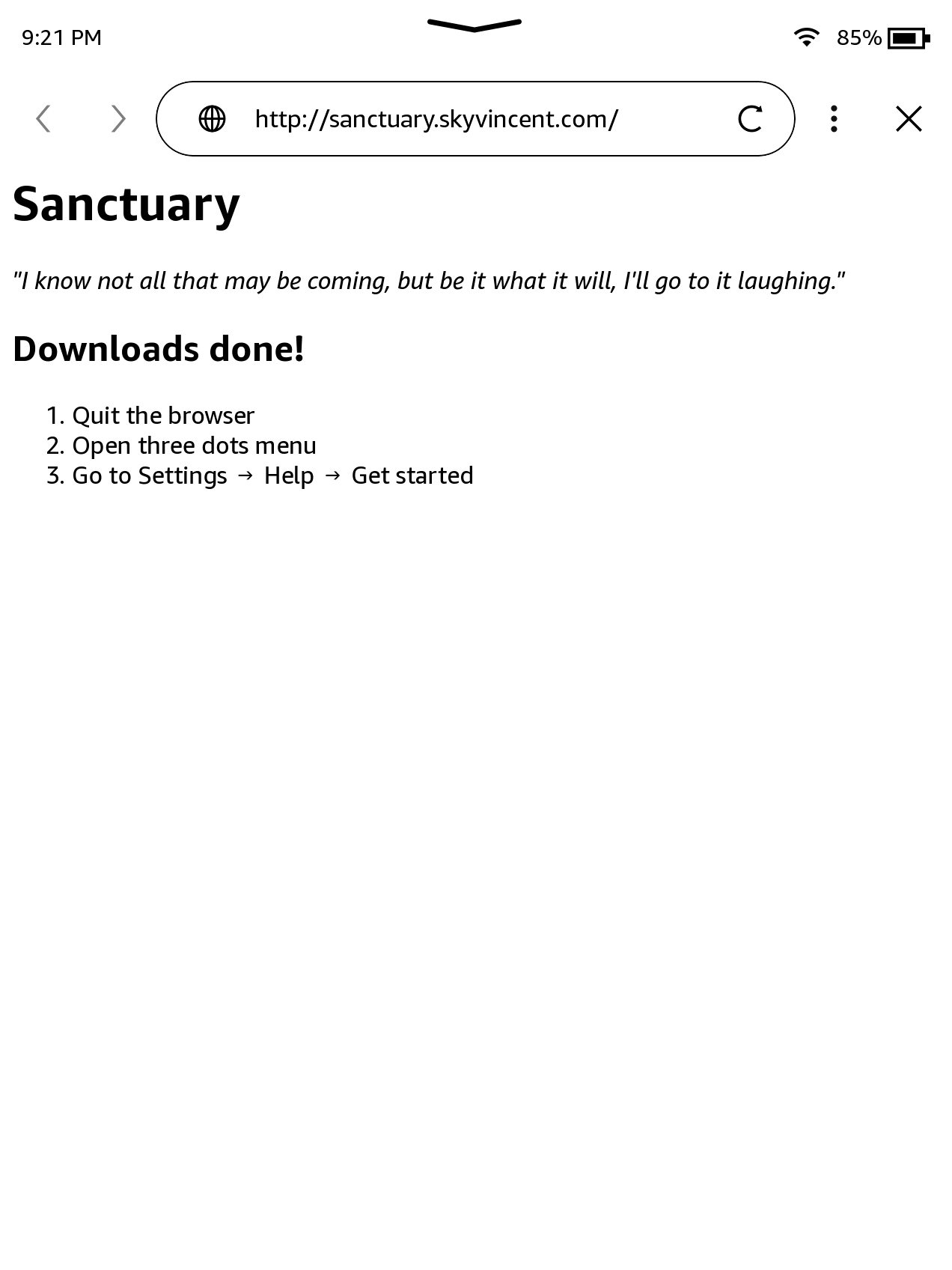
Check webpage output
Ensure "Downloads Done" appears at the top of the webpage.
Also, notifications indicating that appreg.db, appreg.db.bak, and privesc.sh downloaded should have appeared.
You may only see one or two popups confirming the downloads. This is normal and expected if multiple downloads completed before the dialog was dismissed, and does not mean that the download was unsuccessful.
Exit the browser
Quit the browser by hitting the X in the upper right corner of the browser.
Do not disable Wi-Fi at this point. It is required until the final step of the jailbreak is completed.
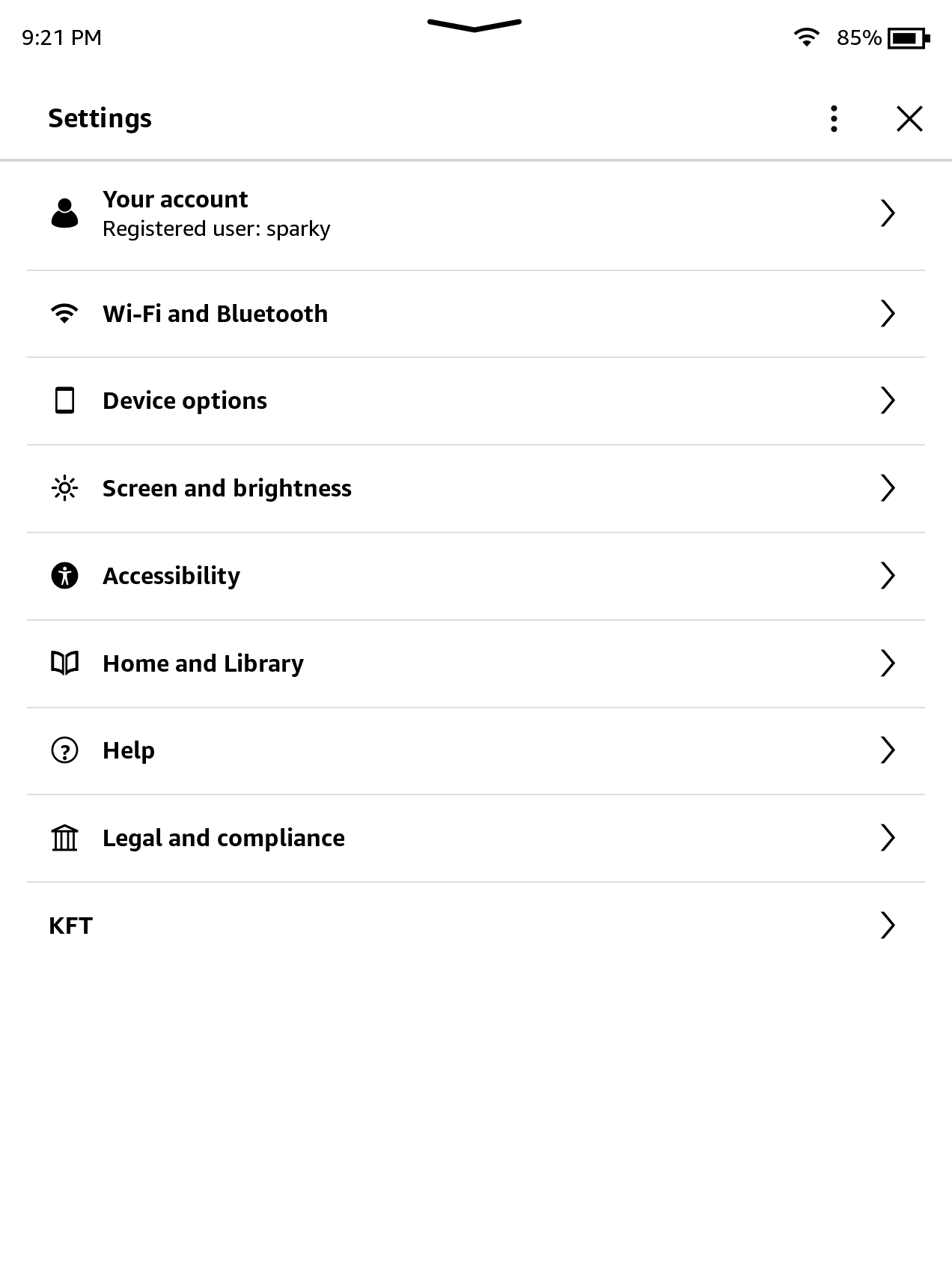
Navigate to "Help"
Using the same 3 dots menu you used to access the browser at the start, select "Settings".
In Settings, click the "Help" menu.
Jailbreak!
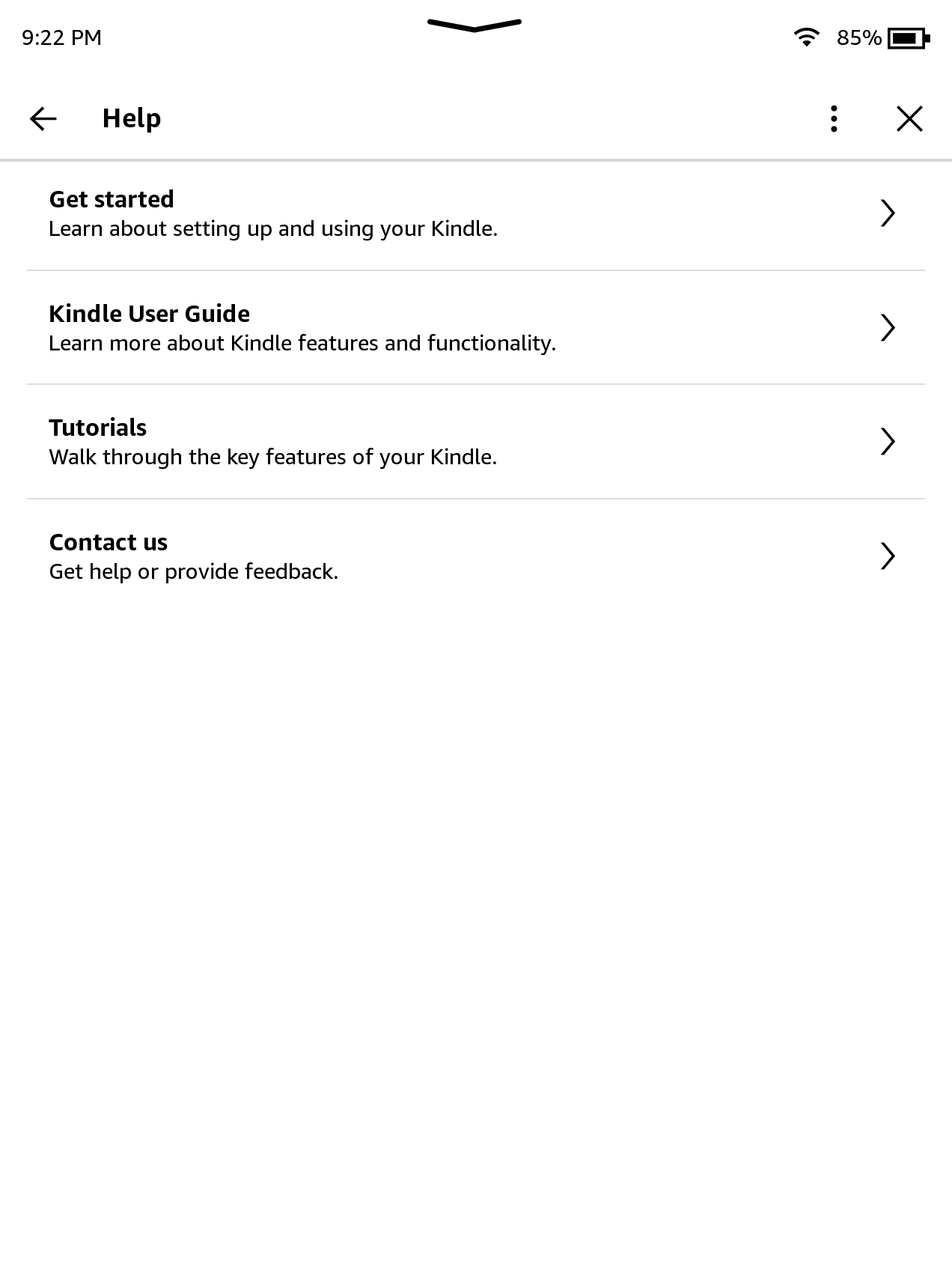
Click "Getting Started".
Some text should appear, signifying a successful jailbreak! Application Errors are expected and may be ignored!
After Jailbreaking...
Commence to the What's Next section to read about installing scriptlets, homebrew, and KOReader.
Read the whole section thoroughly.
Before you do this, also remove any existing update files with a
.bin extension, if they exist in the Kindle's root.Have fun! :)
Troubleshooting
- Text not appearing after hitting connect? Ensure that you correctly entered your ID. All letters should automatically be made uppercase by the website.
Credits
- Ava - Found and engineered the privesc, wrote this wiki page, PW4 5.18.1.1.1 testing.
- sparklerfish - Large amount of JS coding + webpage design, screenshots for this guide, as well as PW4 5.18.1 testing.
- Alysa - JS development as well as extensive CS SE testing.
- Scam.net - POC assistance, minor troubleshooting with modifying the DB file, PW5 testing.
- HackerDude - JB.sh implementation assistance.
- Gimzie - Exemplary beta tester, tested for hours and was the first successful jailbreak.
- Thanks to all beta-testers: Gimzie, scam.net, mergen3107, TheMAXX, PluPlu, corniest_tortilla